The Loam icon: soil horizons under a moss sprout.

loam

A macOS terminal, built on libghostty, that gives every Claude Code session a home.

Loam keeps each area of work in a plot: a short brief, the repos, and the links that matter. Each session that Loam starts in the plot gets all of it from its first message.

curl -fsSL https://raw.githubusercontent.com/GregorMcC/loam/main/scripts/install-release.sh | sh

macOS 26 or later, Apple silicon, and Claude Code.

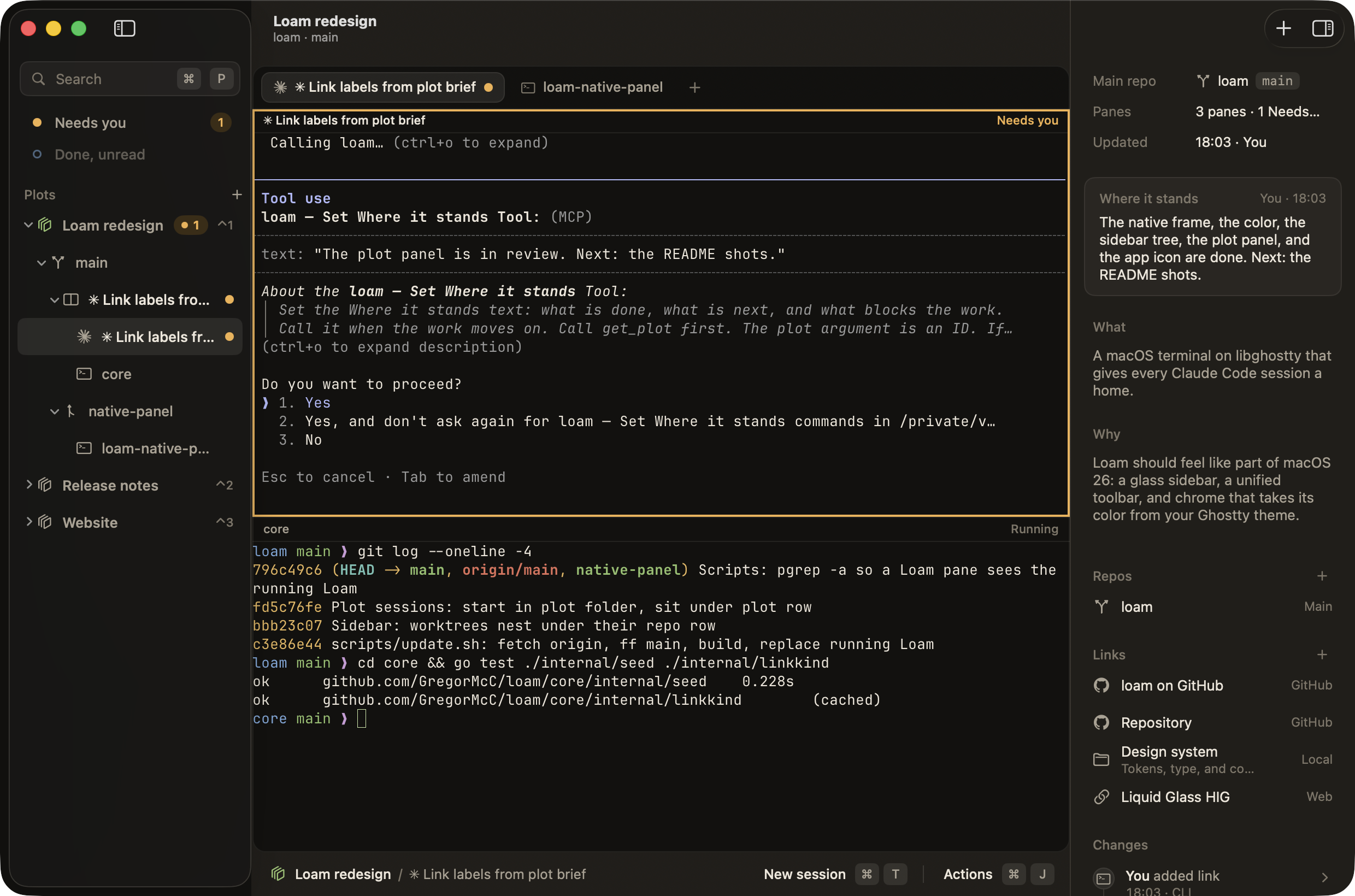
The Loam window. The sidebar shows plots as a tree of checkouts, worktrees, and panes. A Claude Code session and a shell sit in a split. The plot panel on the right shows the brief, repos, links, and the change log.
Why Loam

A new session starts blank

A Claude Code session does not know what the work is, why it matters, or where the key documents are. Loam gives it that knowledge before you type.

The problem

Each new session needs the same explanation again. You type the purpose of the work, the repos it touches, and the paths to the documents.

Many people paste a brief that they wrote at the start of the work. The pasted brief stays the same when the work moves on. The session then starts from an old state and can follow the wrong document.
Loam's answer

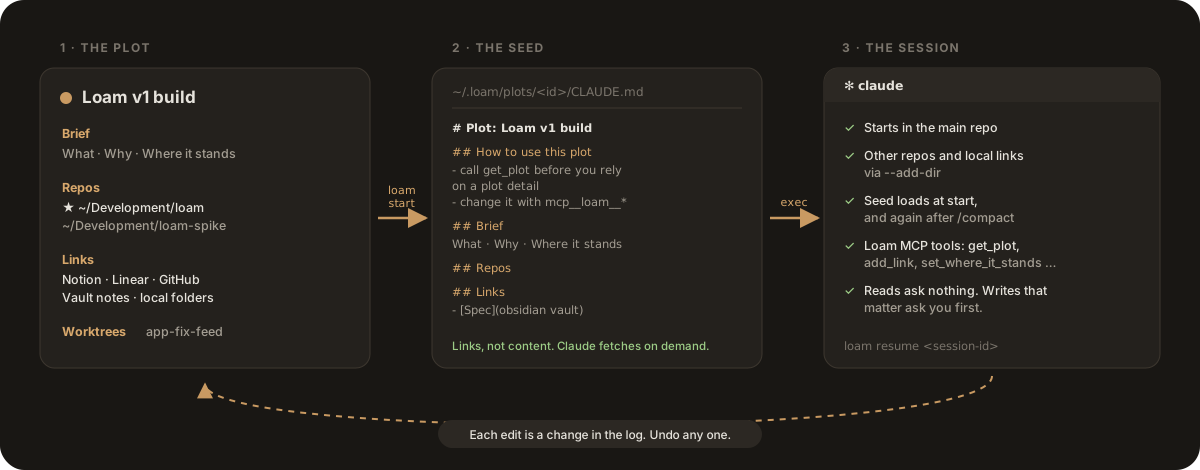
Loam keeps the context in a plot. A plot is one area of work, with a brief, its repos, and links to the documents that matter.

Each session that Loam starts in the plot gets a seed with the current plot. Claude can update the plot through the Loam MCP tools. Each edit goes in a change log, and you can undo it. The next session then starts from where the work stands now.

The decisions behind the design

Each decision has a record in the repo, with the options that I rejected and the reasons.

A seed holds links only

Loam never fetches or caches the content of a linked page. A link is always current, and no work content goes to disk. Claude fetches a page through its own connectors when the task needs it.

ADR 0001

Sessions start in the main repo

Claude Code applies only the settings of the folder where a session starts. A session in the main repo keeps its permissions, hooks, and git status. The plot folder, with the seed, and the other repos attach as added folders.

ADR 0003

The core works without the app

The loam CLI and the MCP server hold the plots and start seeded sessions. You can use them in any terminal. The app is one front end to the core.

ADR 0002

The CLI is the contract

The core is one Go binary. The Swift app reads and changes plots only through loam --json, with stable exit codes. The two sides share no code.

ADR 0004
The plot

What a plot holds

A plot is a named area of work. It can hold code, or only a brief and links. Every seeded session in the plot reads it.

A plot holds a brief, repos, links, and worktrees. loam start writes the seed file, then runs claude in the main repo with the Loam MCP tools. Each edit goes back to the plot as a change in the log.
loam start writes the seed, then runs Claude Code in the main repo with the Loam MCP tools.
Brief
Three short parts. What and Why rarely change. Where it stands moves with the work. WhatWhyWhere it stands
Repos
Local git checkouts. One is the main repo, where sessions start. A repo can belong to many plots.
Links
Labelled pointers to Notion pages, Linear issues, GitHub, vault notes, URLs, and local folders. A seed holds the links, never their content.
Worktrees
Separate checkouts of a repo, each on its own branch, that Loam makes for the plot. Loam runs your setup command in each new worktree.
Change log
Every edit, by you or by a session, with who made it and when. Undo adds a change. It never removes one.
What a session sees: the seed
# Plot: Loam v1 build

## How to use this plot
- The plot can change while you work. Before you rely
  on a plot detail, call get_plot.
- When the work moves on, call set_where_it_stands
  with your proposed text.

## Brief
### What   ...
### Why    ...
### Where it stands   ...

## Repos
- ~/Development/loam: the Loam repo
Features

What you get

The sidebar shows each plot as a tree: the main checkout, each worktree, and the panes that run in it. ⌘ T starts a seeded session in the active plot.

A signal when a session needs you

A pane whose session waits on you, for example at a permission prompt, turns amber. The sidebar lists it under Needs you, and its plot shows a count, also when the plot is not on screen.

  • Needs you: the session waits on your answer.
  • Done, unread: the session finished a turn that you have not seen.
  • ⌘L Next pane that needs you
A Claude Code session waits at a permission prompt for the Loam tool that sets Where it stands. Its pane has an amber ring, the sidebar lists it under Needs you, and the plot row shows a count of 1.
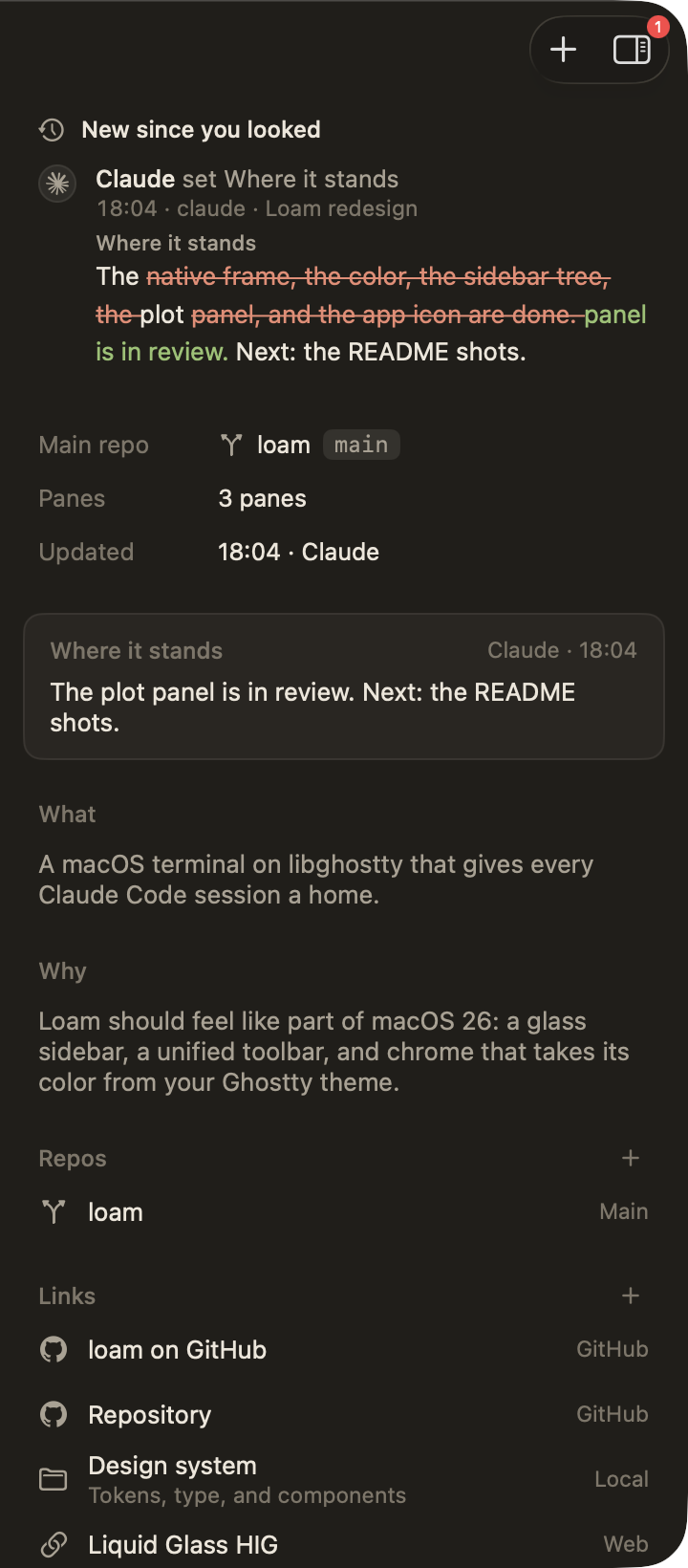
The plot panel: a change by Claude to Where it stands under New since you looked, with the word diff and Undo, then the brief, repos, links, and the change log.

Review what Claude changed

The plot panel holds the brief, the repos, and the links. You can edit all of them. When a session changes the plot, the change shows under New since you looked, with the words that Claude removed and added.

The change log keeps every change. Undo reverses one change. An undone change stays in the log.

  • ⌘I Show or hide the plot panel

Go anywhere from the keyboard

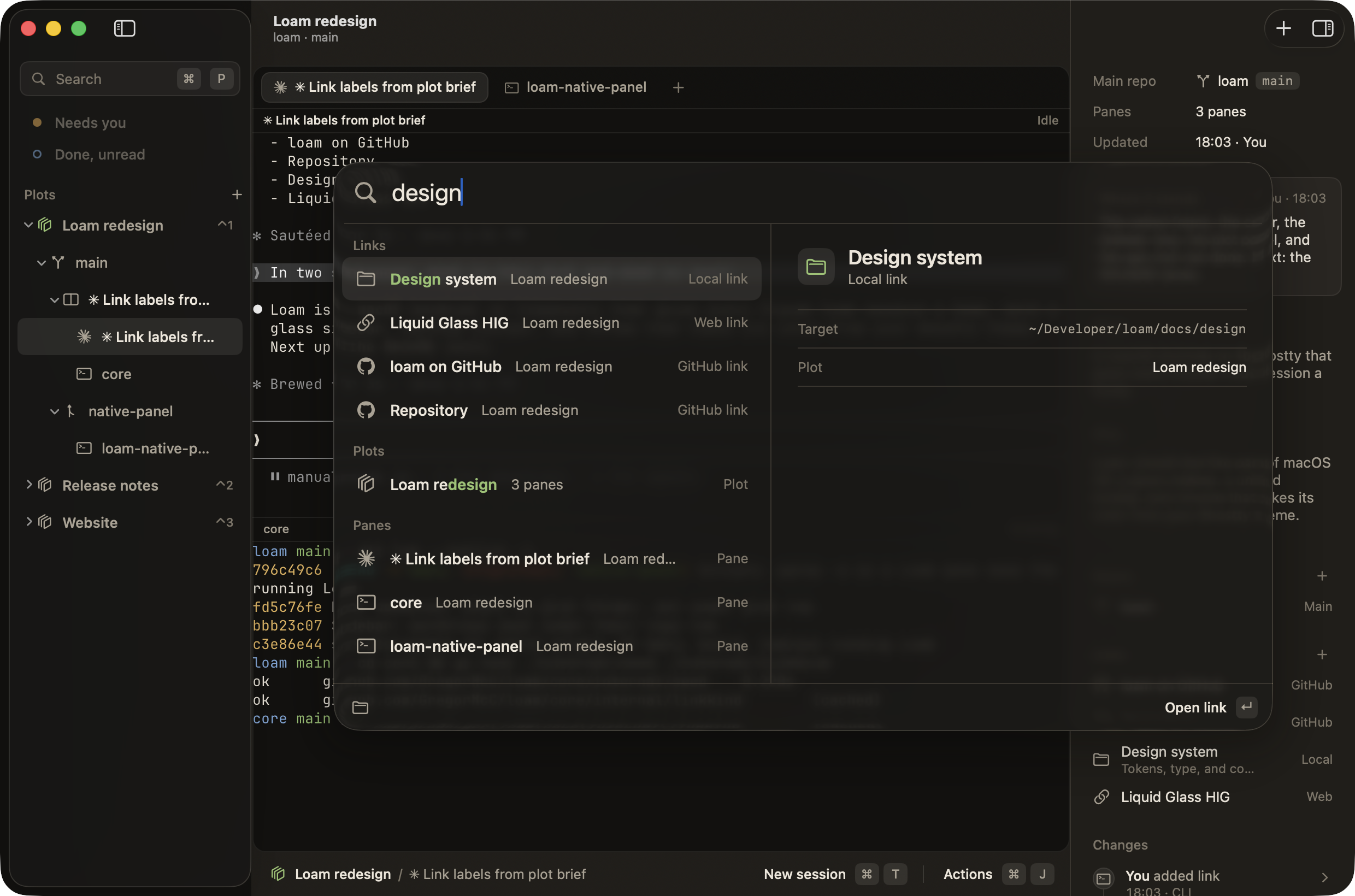
The quick switcher finds plots, panes, links, and commands. Each plot also has its own key.

  • ⌘P Quick switcher
  • ⌃1 to ⌃9 Go to a plot
The quick switcher over the Loam window. The query design matches a link, the plot, and its panes.

Your terminal, in your theme

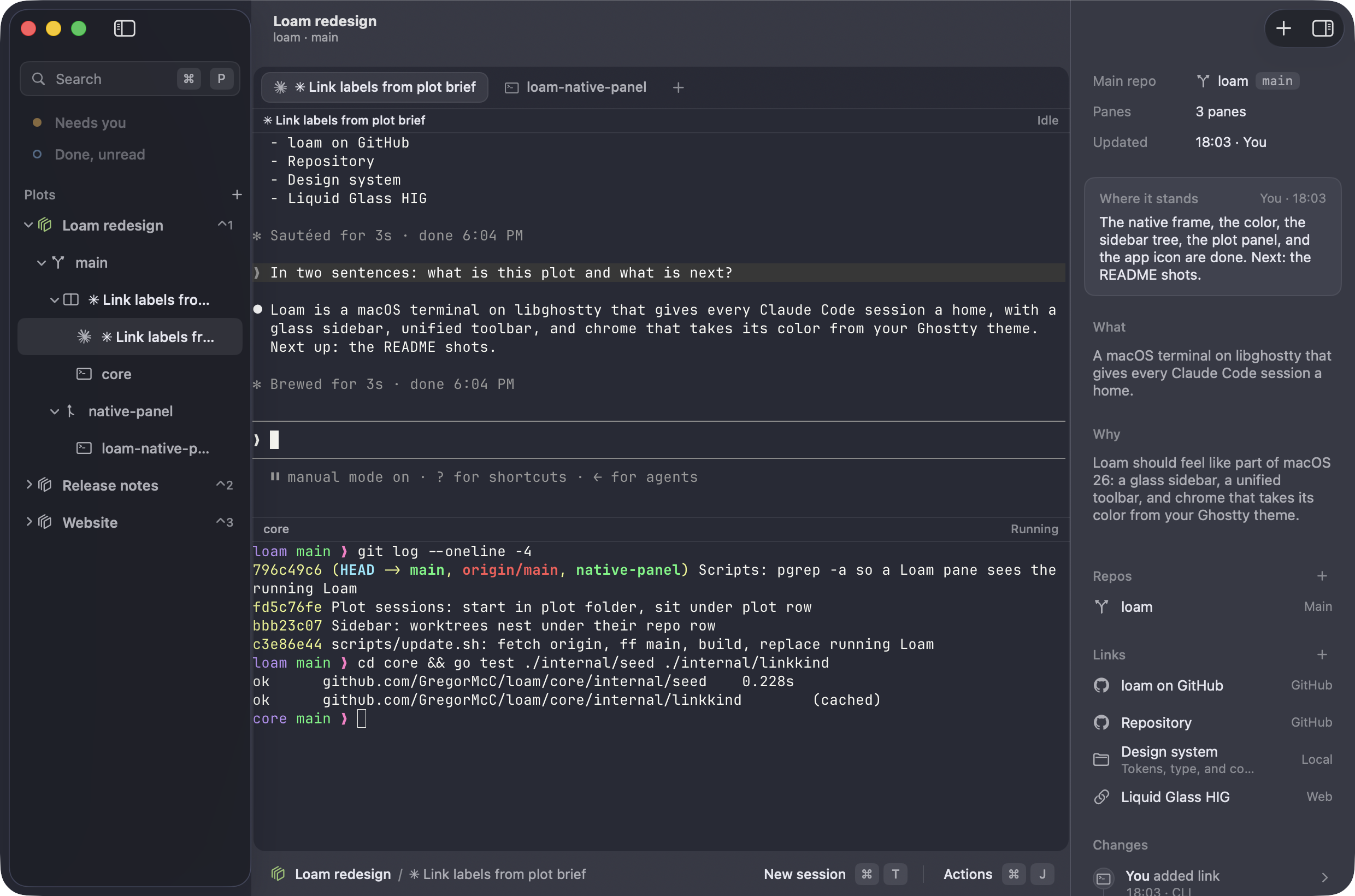
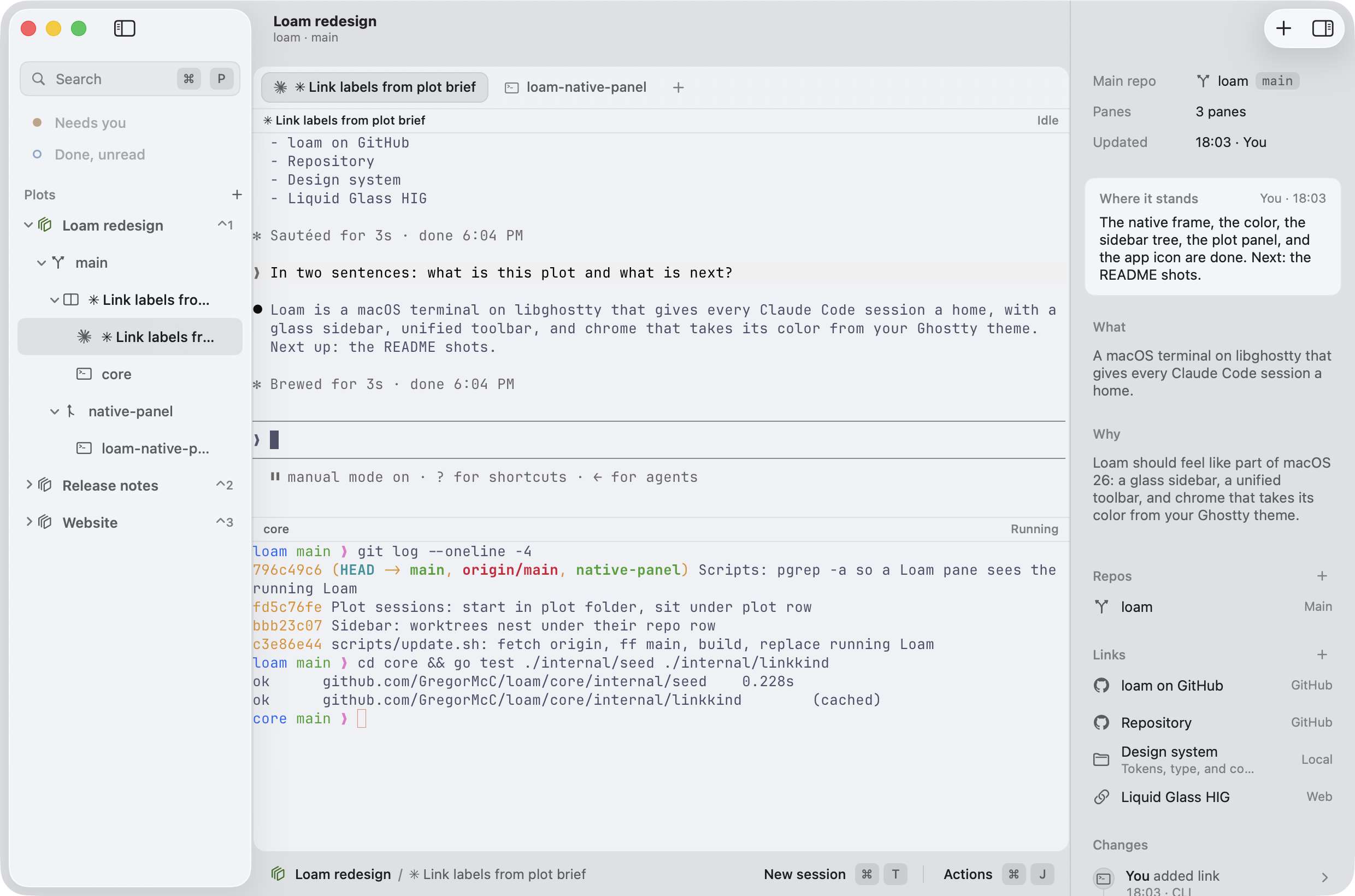
Loam runs on libghostty, so your Ghostty config applies: the font, the keys, and the theme. The window takes its colours from the terminal theme and changes when you reload the config. With no config, Loam uses its own Night and Day themes.

Loam with the Dracula theme: the sidebar, toolbar, and plot panel take Dracula's colours.
Dracula
Loam with the Catppuccin Latte theme: the window chrome follows the light terminal colours.
Catppuccin Latte

Your layout comes back

Quit and reopen Loam, and your tabs and splits come back. Each session resumes when you show its plot.

The CLI works in any terminal

Use loam start in Ghostty or any other terminal to start a seeded session without the app.

Install

Install Loam

One script installs the Loam app and the loam CLI.

  1. Run the install script

    Paste this command in a terminal.

    curl -fsSL https://raw.githubusercontent.com/GregorMcC/loam/main/scripts/install-release.sh | sh
  2. Connect Loam to Claude Code

    Run this command once. It registers the Loam MCP server with Claude Code.

    loam setup
  3. Start your first plot

    Open Loam. Press ⌘N and name the plot. Write the brief in the plot panel and add the repos. Then press ⌘T to start a seeded session.